Tenants are the heart of ProperLease. Every payment, lease, reminder, and notice attaches to a tenant, so getting this record right means the rest of the app stays accurate on its own. This page covers adding a tenant, what each field is for, how the Paid, Behind, and Overdue statuses are worked out, and how to move someone to Past when they leave.
Add a tenant
Open Tenants and tap the plus button. You will fill in a short form:
- Choose the property the tenant lives in, then the specific unit. Tenants are grouped by property, so this is what keeps everyone sorted under the right building.
- Enter the tenant name.
- Add the tenant email. This one matters most: it is where automatic rent reminders and lease documents are sent. A wrong address means the tenant never gets reminded.
- Add a phone number for quick contact.
- Set the monthly rent. This is the amount ProperLease expects to collect each month and the figure it compares payments against.
Save, and the tenant appears in your list under their property.
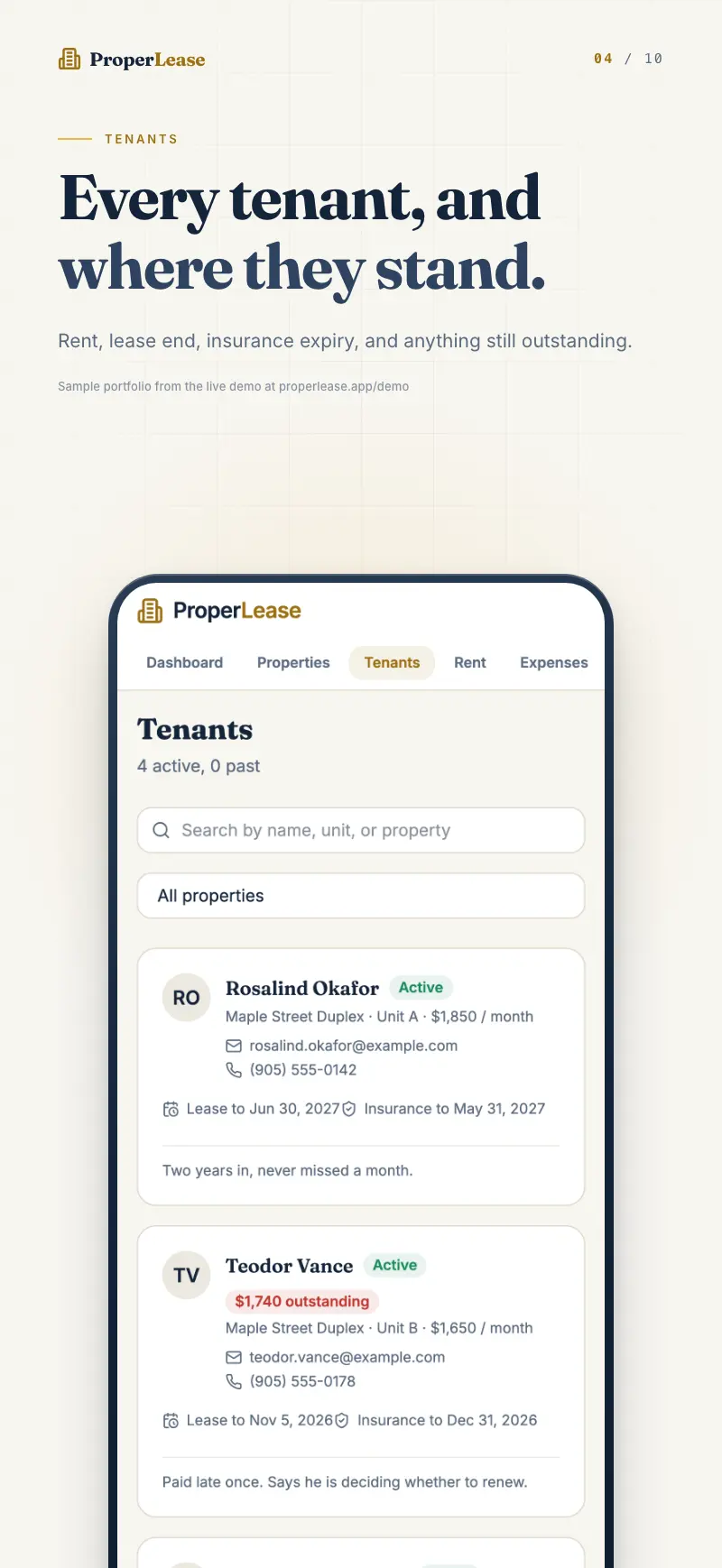
You will link a lease to this tenant next, and later log payments against them. Adding the tenant first means every downstream record has something to attach to.
What each field is for
- Property and unit place the tenant in your portfolio and drive the grouping you see in the list.
- Email is the delivery address for reminders, generated leases, and notices. Keep it current.
- Phone is for your own reference and quick outreach.
- Monthly rent is the expected amount. When you record a payment for the month, ProperLease checks it against this number to decide whether the tenant is caught up.
How statuses are derived
Each tenant shows one of three statuses, calculated from the rent you have actually recorded against them:
| Status | What it means |
|---|---|
| Paid | Rent for the current period is fully recorded. Nothing is owing. |
| Behind | The due date has passed and rent is not yet recorded, but only recently. |
| Overdue | Rent is unpaid past the due date, shown with a running count of days overdue. |
The status updates on its own as you log payments. Record this month's rent and a tenant flips from Overdue back to Paid without any extra step. Because the count of days overdue keeps climbing until payment lands, you always know at a glance who needs a nudge and how urgent it is. For what to do when a tenant slips behind, see Handle late rent and reminders.
Edit a tenant
Open the tenant and update any field. If rent changes at renewal, update the monthly rent here so future comparisons use the new figure. Correcting an email address here also fixes where future reminders and documents are sent.
Move a tenant to Past
When a tenancy ends, you do not delete the tenant. Move them to Past instead. This keeps their full history intact: every payment, every lease, and every notice stays on file, which is exactly the record you want if a deposit question or dispute comes up later. Past tenants drop out of your active list and stop counting toward expected rent, so your dashboard reflects only current tenancies.
Before you close out a move out, settle the deposit. See Hold and return security deposits for the condition record and deduction steps.
Tenancy and record keeping rules vary by province and state. Treat this as general guidance and confirm the specific requirements in your jurisdiction.
Next steps
- Generate a province or state lease to tie this tenant to a unit with the correct document.
- Record rent payments so statuses stay accurate.
- New here? Start with the quick start guide.
Run your rentals with absolute clarity
ProperLease helps self-managing landlords in Canada and the US track rent, generate provincial and state leases, serve notices, and stay tax ready.