This guide takes you from an empty account to a working portfolio in about fifteen minutes. You do not need to import anything or read a manual first. Follow the five steps below in order and your dashboard will start reporting real numbers by the end.
Before you begin
You only need two things: the address of one property and the details of one current tenant. If a unit is vacant, that is fine too. ProperLease works the same whether you manage a single condo or a small portfolio of buildings.
Everything below can be done from the iPhone app or the web app. Your data syncs across both, so start wherever you are.
Step 1: Add your first property
Open Properties and tap the plus button. Enter the address, the property type (single family, condo, duplex, or multi unit), and how many units it contains. A duplex has two units, a fourplex has four, and so on.
If you enter the purchase date and price, along with mortgage, property tax, and insurance figures, ProperLease can calculate real cashflow per property later. You can always add these on the property form afterward.
Once saved, the property appears in your list with an occupancy bar and a health badge. A new property with no leases shows as vacant until you add a tenant.
Step 2: Add a tenant
Open Tenants and tap the plus button. Choose the property and unit, then enter the tenant name, contact email, phone, and monthly rent. The email matters: it is where automatic rent reminders and lease documents are sent.
Tenants are grouped by property so you always know who lives where. Each tenant shows a status of Paid, Behind, or Overdue based on the rent you have recorded against them.
Step 3: Generate or attach a lease
Open Leases to create the agreement that ties a tenant to a unit. ProperLease generates the correct document for your jurisdiction:
- Canada: the official provincial forms for Ontario, British Columbia, and Quebec.
- United States: attorney reviewed residential leases for 45 states.
Set the rent, term start and end dates, and the deposit you are holding. The finished lease is a PDF you can download, sign, and share with your tenant. The deposit you record here is tracked separately so you never lose sight of what you owe back at move out.
Step 4: Record a rent payment
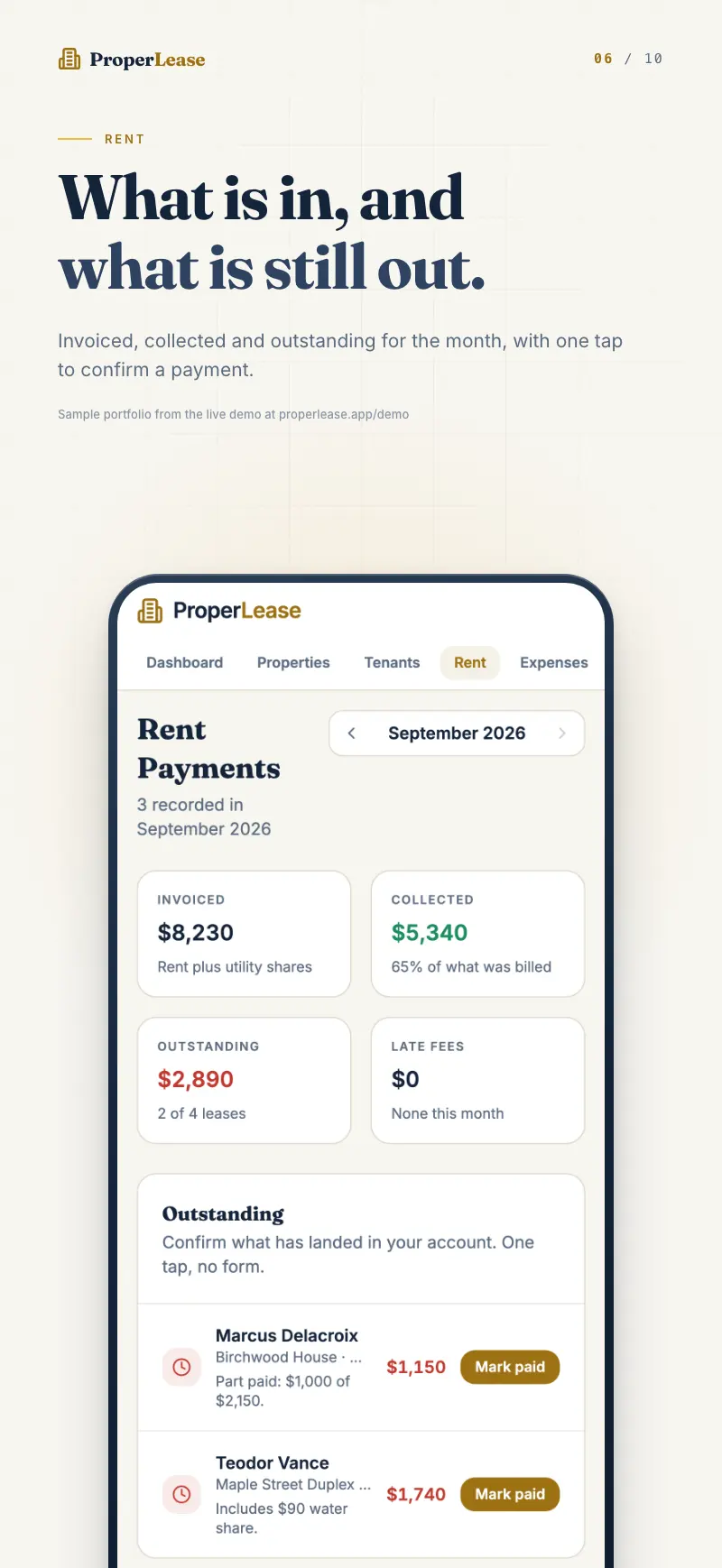
When rent arrives, open Payments and log it in one tap. Choose the tenant, the amount, the date, and the method (e transfer, bank transfer, ACH, or cash). ProperLease pairs the payment to the right tenant and lease and marks the month as collected.
Step 5: Read your dashboard
Open the Dashboard. With one property, one tenant, and one payment recorded, you will now see rent collected against expected rent, net cashflow, and counts for properties, tenants, utilities, and expenses. Switch between This month, Last month, and Year to date to see the picture change.
That is the whole loop: properties hold tenants, tenants have leases, leases produce rent, and rent rolls up into numbers you can trust.
Where to go next
- Set up automatic late rent reminders so you never chase a tenant by hand again.
- Learn how real cashflow per property is calculated.
- When tax season comes, export a year-end report aligned to the T776 or Schedule E.
Run your rentals with absolute clarity
ProperLease helps self-managing landlords in Canada and the US track rent, generate provincial and state leases, serve notices, and stay tax ready.